
I am as Type-B of a teacher as it gets- my desk is full of random sticky notes, I have a loose idea of where everything important is, and nothing about my systems looks esthetic. For me, this works! It might not for you, and if your room looks Pinterest-Perfect then I am both jealous and exhausted by your ambition. Part of my problem is a have a varied case load. I support 3 students who are included in general education all day, 2 students who spend part of their day in inclusion, and 4 students who are in my classroom all day long. I am so lucky that my district has allocated 1:1 paraprofessionals for all students, but it creates this unique problem where I have 9 people who all need things from me simultaneously and I can never remember them!
This year, I started a system that has helped SO much. Each of my students has a clipboard that houses their schedules, data sheets, and other important information so the paras can keep everything in one organized place while they travel around the school. Because I can’t be with each student throughout their day when issues come up, I created a form called “Requests for Megan” that staff can submit requests, concerns, and questions to me when I’m not around. All the responses collate into a Google Sheet that I can view to keep the requests organized. I collect the responses using a QR Code so paras can easily use their phones to send me a quick note. This is how I created it, it’ll take you 10 minutes but save you loads of time!
- Create a Google Form in Drive. You can go crazy with the customization but all you really need are instructions for how to fill out the form for your paras and 1 question box. The question box should be in short answer or paragraph format. This is where the paras will type their requests, comments, or questions for you.
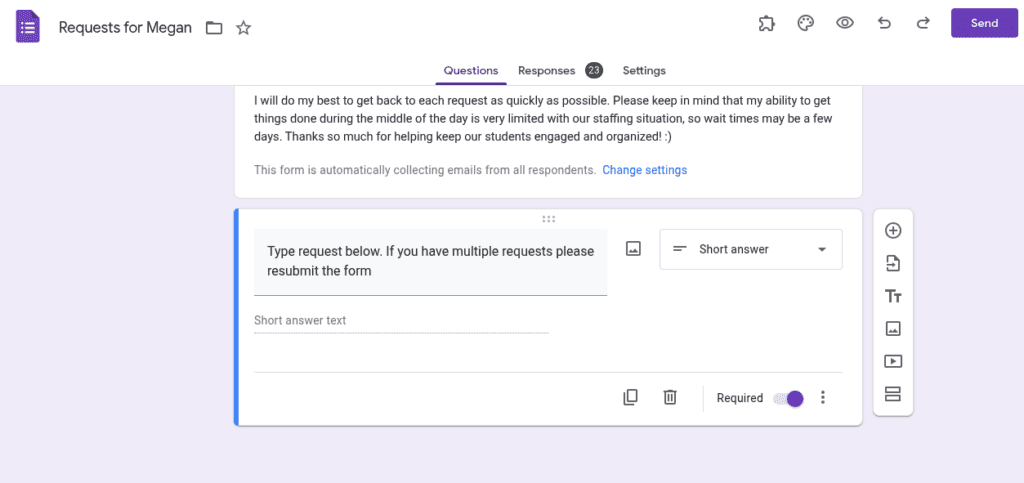
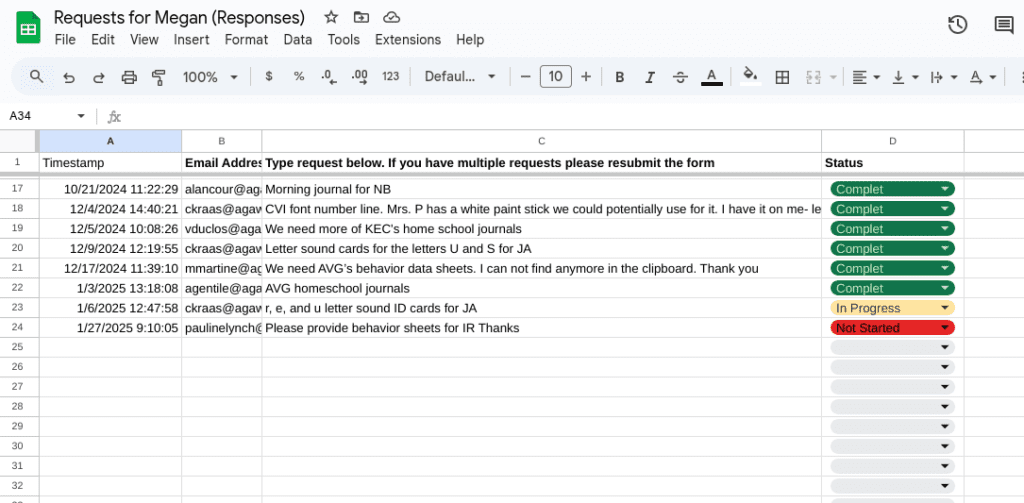
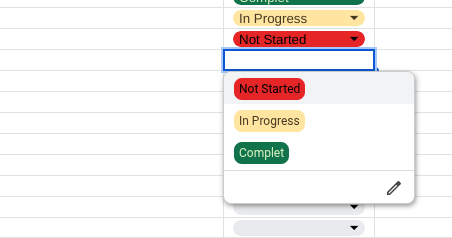
2. Create a Google Sheet for the Responses. On the Google Form you just created, go to the Responses tab and click “View in Sheets.” This will automatically create a Google Sheet where all the responses will live. I added a custom column for Status to my Google Sheet that includes a drop down menu so I can keep track of whether or not I’ve completed the request, I’ve started the request, or if I haven’t begun working on it. I make the Google sheet visible to all my paras so they can also see where I am at in the process.
3. Create a QR Code. If you’ve never done this before, it sounds super complicated but I promise that in Canva it is super simple. Open up a blank document, then go to the Apps section on the left. Type in Gen QR and a menu will appear prompting you to add information about your QR code. Under QR code content, copy and paste the link for your Google Form and add whatever customizations you would like. I changed the color of mind and added the text “Requests for Megan” so everyone knows what the QR code links to. Click add to design, copy and paste and then you’re done!
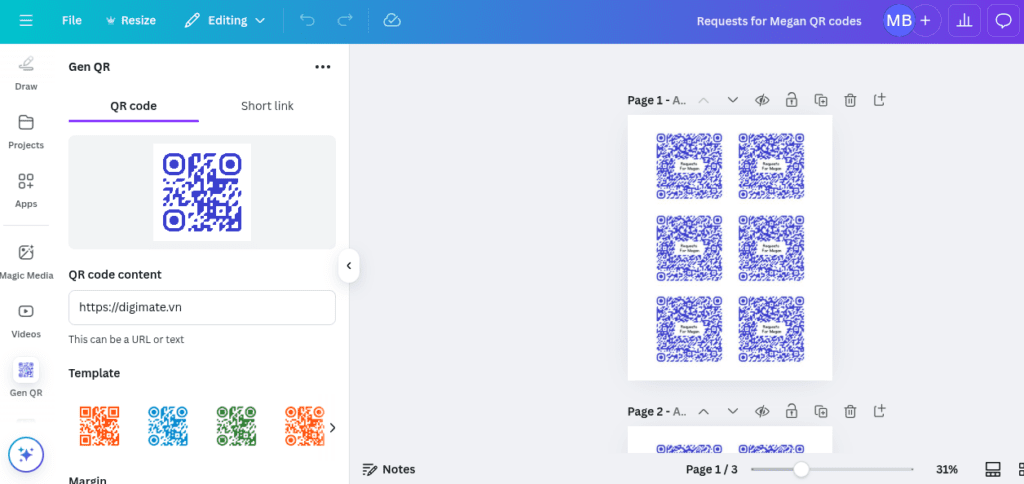
I cut them out and taped them to the clipboards for easy access and put a few others around the classroom. I’m telling you, this is such a simple and easy way to keep yourself organized, you’ll wonder how you managed before hand. If you end up trying this, I’d love to hear how it works in the comments below!